

Side-by-Side Viewing with Synchronized Zoom & Pan
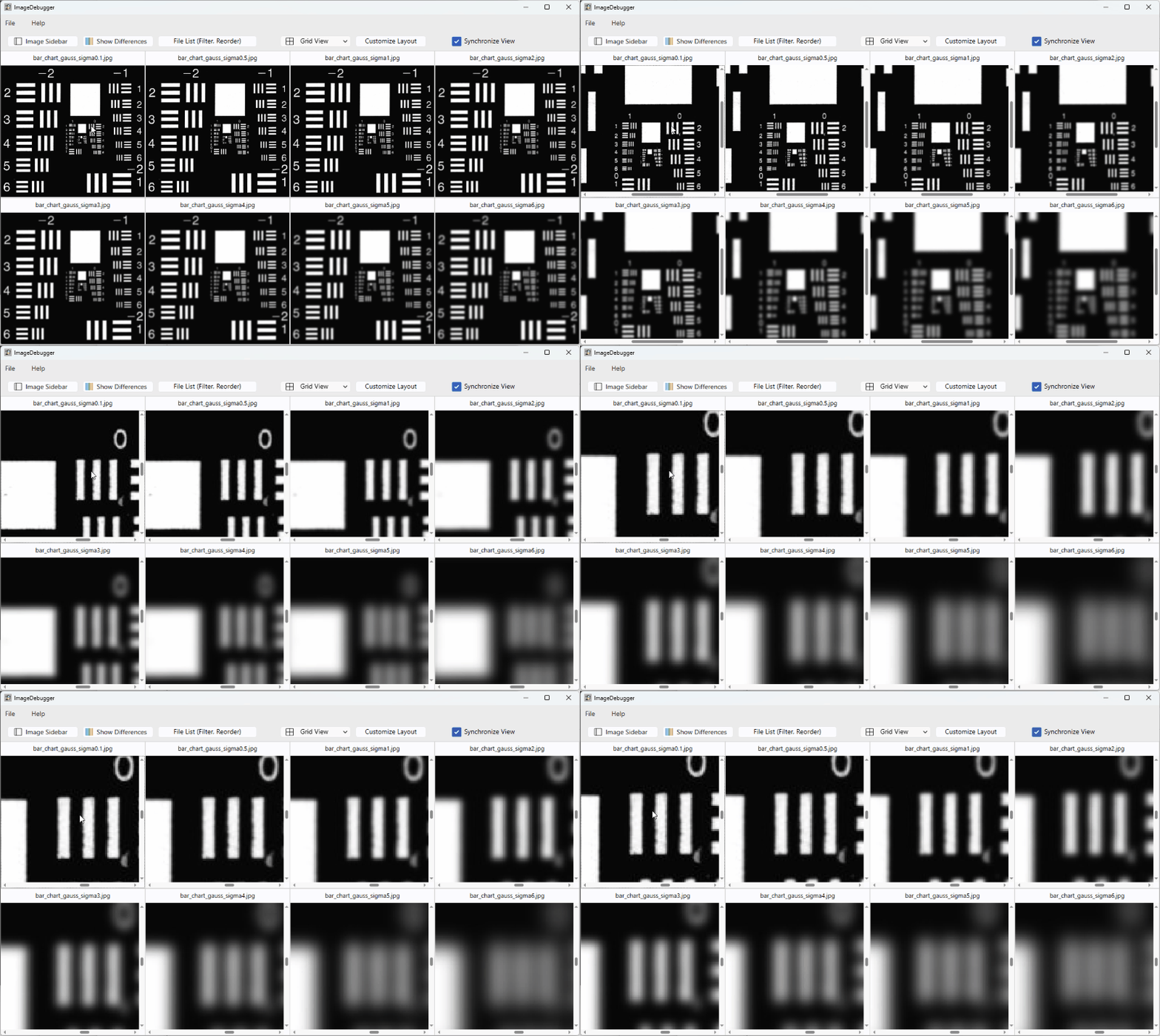
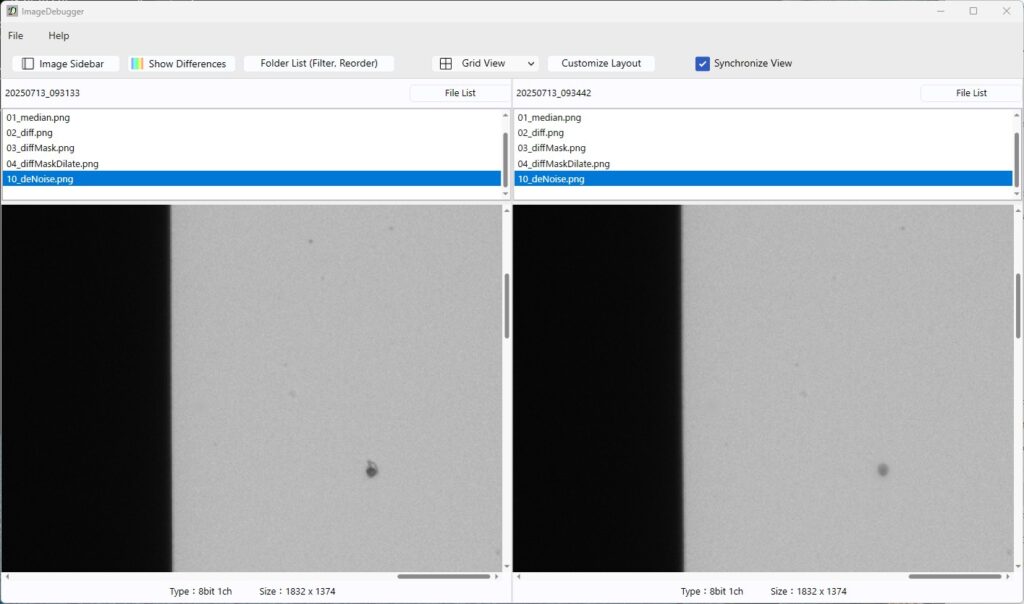
When multiple images are opened, they are arranged in a grid layout.
Using the mouse wheel, you can zoom in/out across all images simultaneously, and with mouse drag, you can pan all images together.
This makes it easy to visually detect differences across corresponding areas in multiple images.
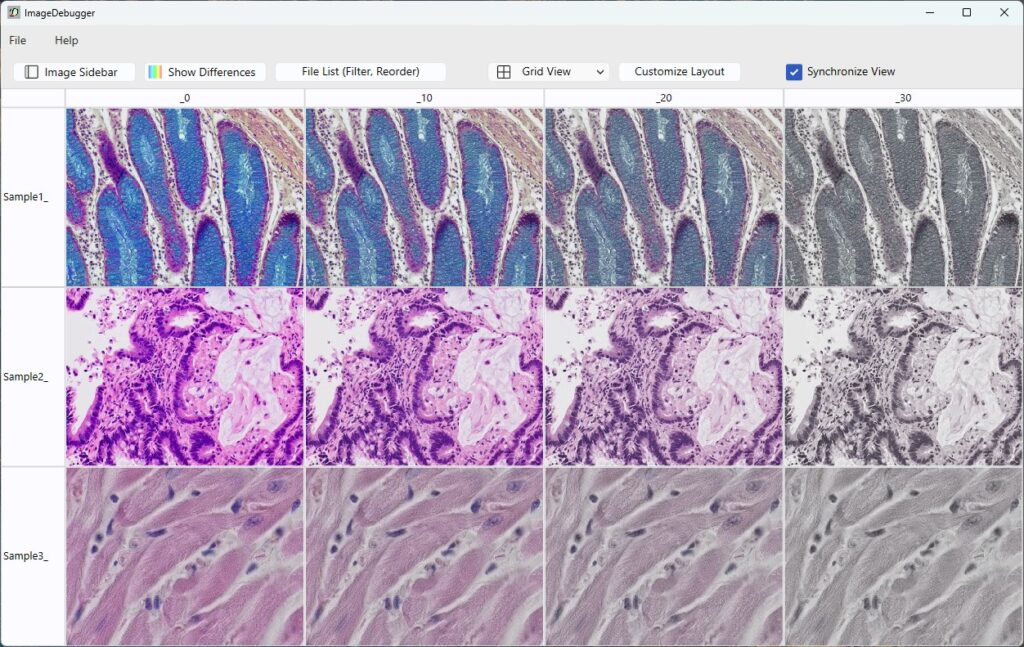
Grid Arrangement with Specified Column and Row Names
You can specify how to arrange the grid by setting the number of columns and rows, or by using column and row names contained in the file names.
This allows you to easily create a table of images based on two parameters.
(To do this: click the “Customize Layout” button → select “Custom Columns” or “Custom Rows”, then enter the column/row names.)
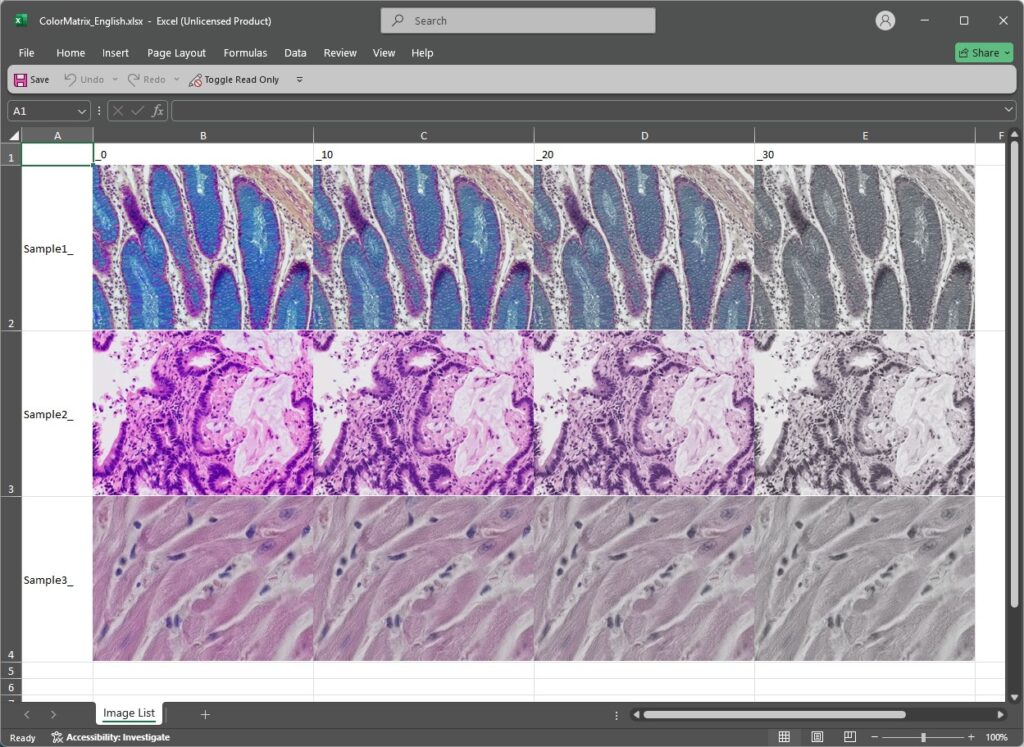
Excel Export
You can export the currently displayed image list directly to an Excel file.
(Menu: “Export to Excel File” → “Grid Layout”)
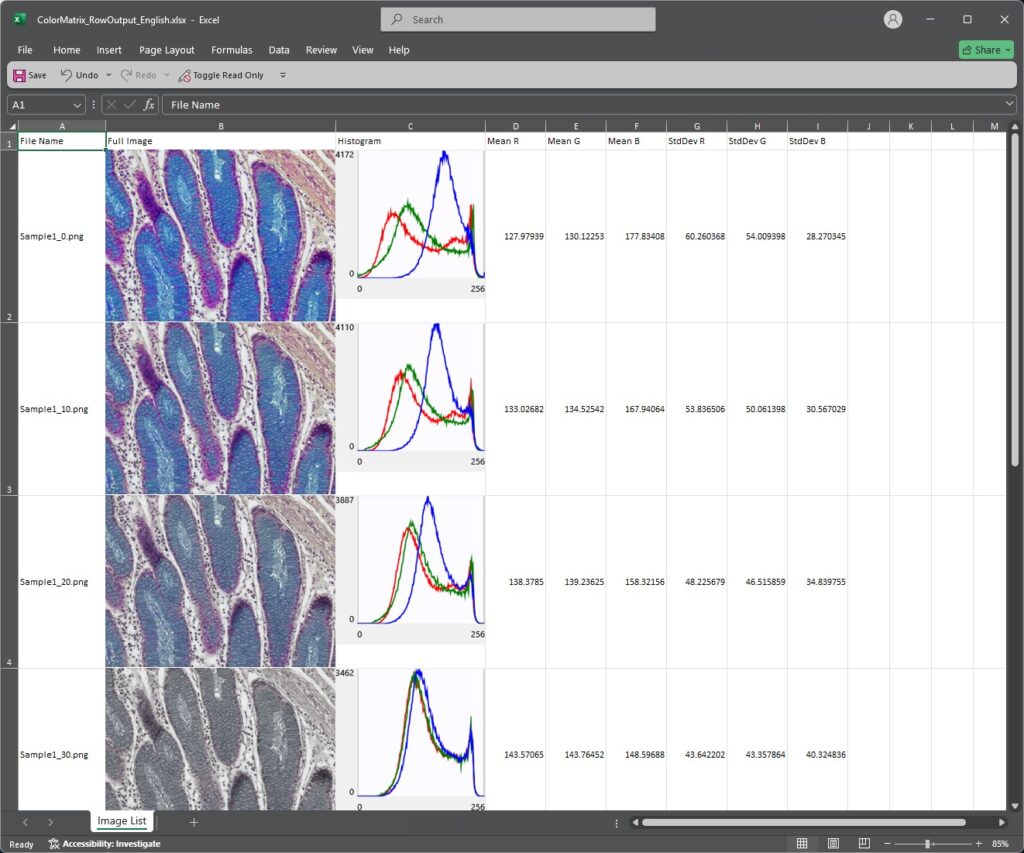
You can also export in a format where each image is placed in a single row, making it easy to sort and filter in Excel.
(Menu: “Export to Excel File” → “One image per row”)
Contrast Adjustment
You can adjust the contrast of multiple images at once while viewing them.
(“Image Sidebar” → “Brightness Contrast” or right-click on an image → “Brightness Contrast”)

Statistics Graph
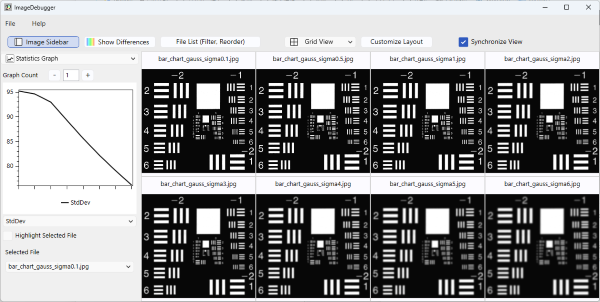
You can display statistical values such as the Mean and StdDev of multiple images as a graph.
(“Image Sidebar” → “Statistics Graph”)
Region Selection
You can create regions in an image.
Created regions can be used to calculate various statistical values (such as Mean and StdDev) in Histogram & Statistics and Statistics Graph.
(“Image Sidebar” → “Region Selection”)
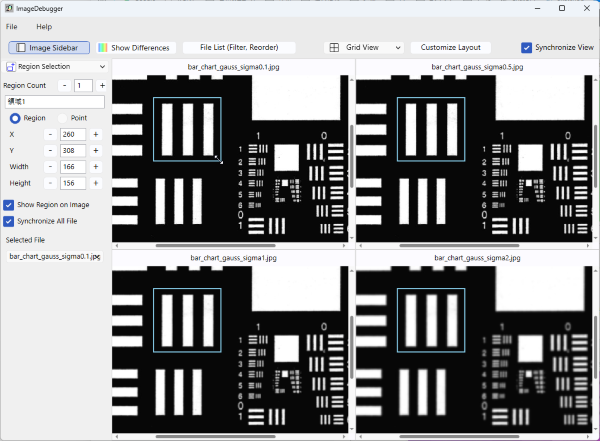
Image Difference Overlay
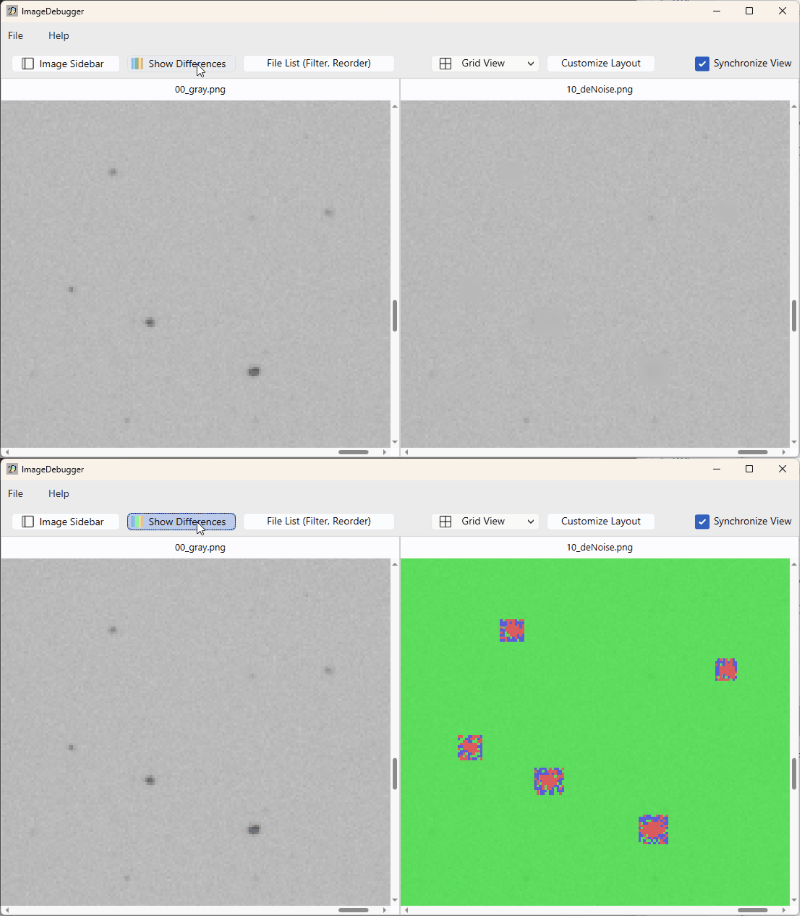
By clicking “Show Difference”, you can overlay the difference from the first image as a base.
The overlay can be adjusted by blending with the original image and modifying the color map range, making differences easier to interpret.
Display Pixel Brightness Values as Text
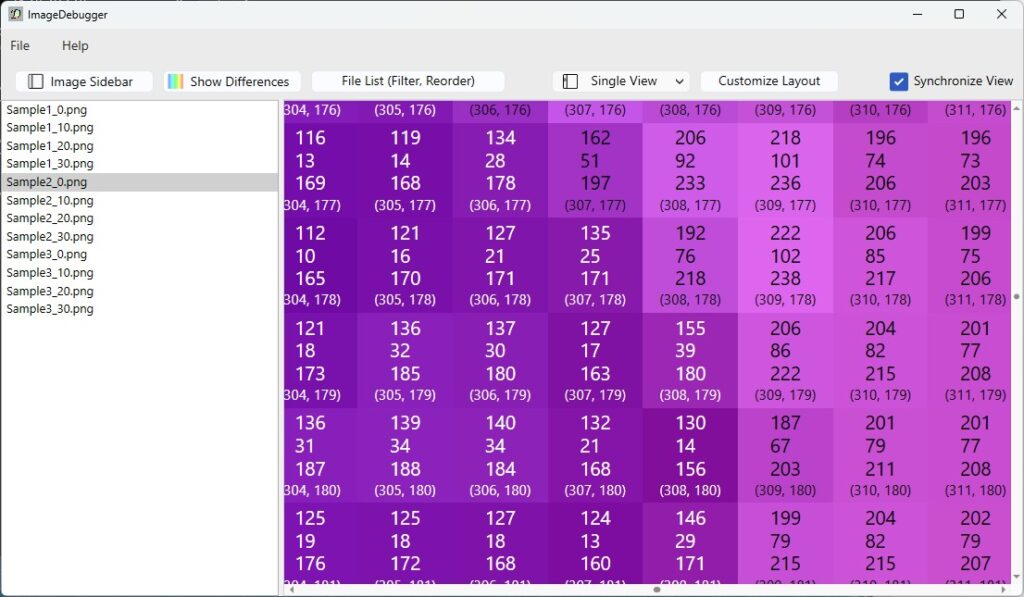
When you zoom in on an image, the brightness value of each pixel is displayed.
You can also copy the brightness text from the right-click menu.
Folder-to-Folder Comparison
In image processing development, it is common to save intermediate images in folders and compare them.
ImageDebugger allows you to open multiple folders and compare images with matching file names side by side.
You can compare multiple images at once and navigate between them using the arrow keys to perform quick comparisons.
Wide Format Support
ImageDebugger supports the following file formats:
- .bmp
- .png
- .jpg
- .tiff
And the following image types:
- 8-bit grayscale images
- 8-bit RGB images
- 8-bit RGBA images
- 16-bit grayscale images (.png, .tiff)
- 16-bit RGB images (.png, .tiff)
- 32-bit floating point grayscale images (.tiff)
- 32-bit floating point RGB images (.tiff)