

ImageJ is an excellent image analysis tool, but it is not well-suited for comparing multiple images at once.
If you try to open several images and zoom into the same area for comparison, it takes quite a bit of effort.
With ImageDebugger, you can easily zoom into the same region across multiple images simultaneously.
This article explains how to do that.
What We Want to Do
As an example, we’ll open four similar images and zoom into the same region to compare them.
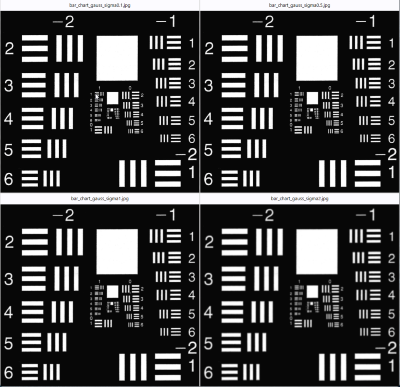
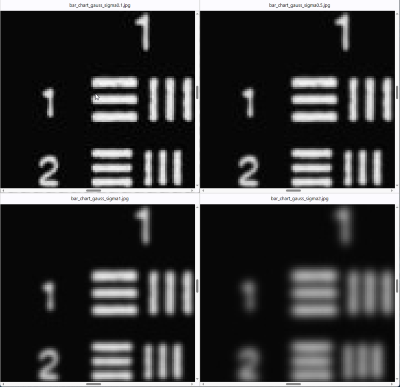
This operation is often useful when comparing multiple images taken under different conditions—such as when evaluating image quality or testing different parameters during image processing development.
How to Zoom Multiple Images in ImageJ
Technically, ImageJ can perform this task, but the process is cumbersome.
Here’s how it works:
- Drag multiple images into the ImageJ control window to open them.
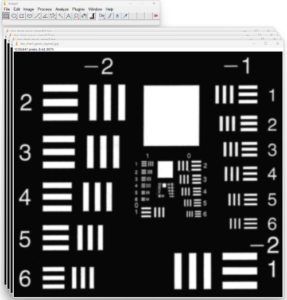
- From the menu, go to Analyze → Tools → Synchronize Windows.
In the Synchronize Windows dialog, click “Synchronize All” and check “Image Scaling”.
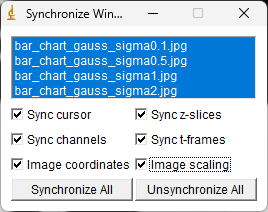
- Select one of the opened images and press “Ctrl + ↓” → all images shrink together.
- Go to Window → Tile to arrange the images.
(They may line up in one row; arranging them into two rows requires manual adjustment.)
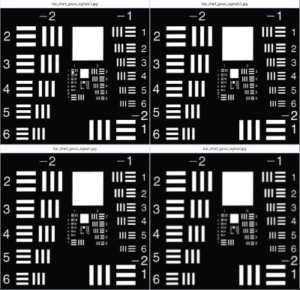
- Move the mouse cursor to the area you want to zoom in on.
- Press “Ctrl + Alt + ↑” → all images zoom in around the cursor.
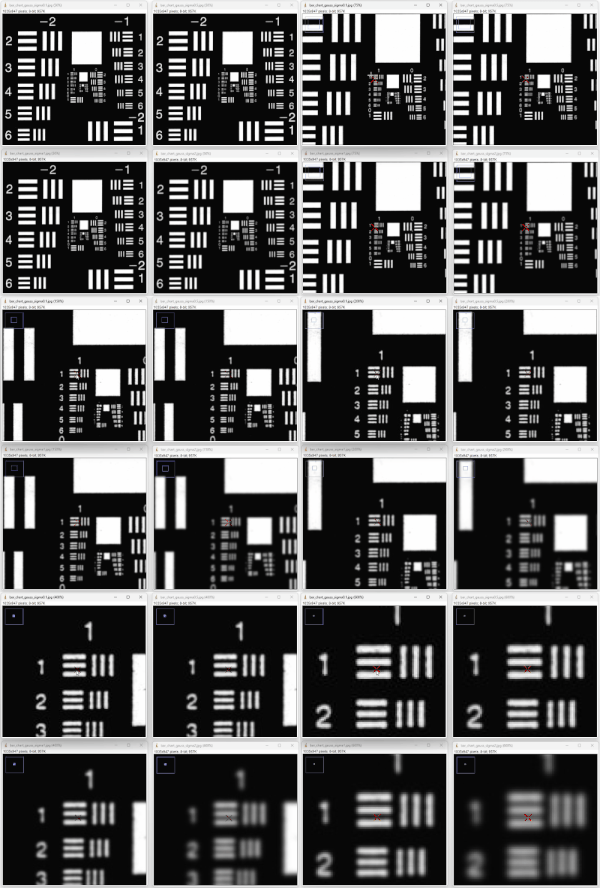
- To move the view area, select the Scrolling Tool in the control window and drag inside an image.

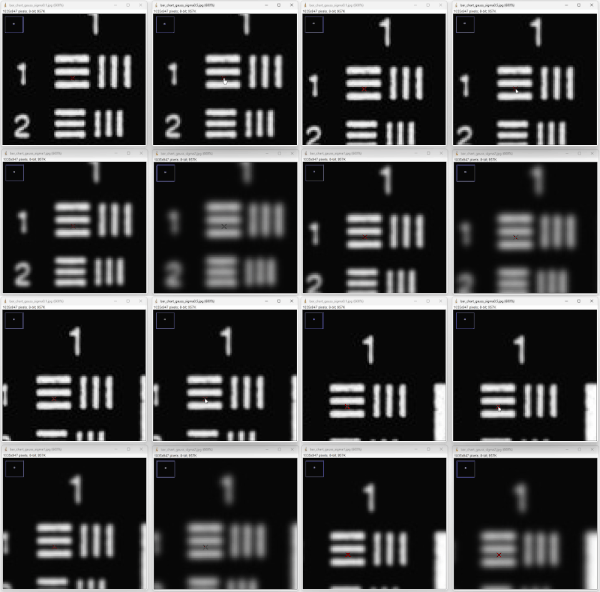
It works, but it’s very tricky.
The Ctrl + Alt + ↑ zoom combination requires great care—missing a key can cause all windows to resize or only one image to zoom.
Also, while you can zoom a single image with Ctrl + mouse wheel, this action cannot be synchronized across all open images.
How to Zoom Multiple Images in ImageDebugger
In ImageDebugger, this operation is much simpler:
- Drag your image files into the window.
- Move your mouse cursor to the area you want to zoom and scroll the wheel.
→ All images zoom simultaneously around that point.
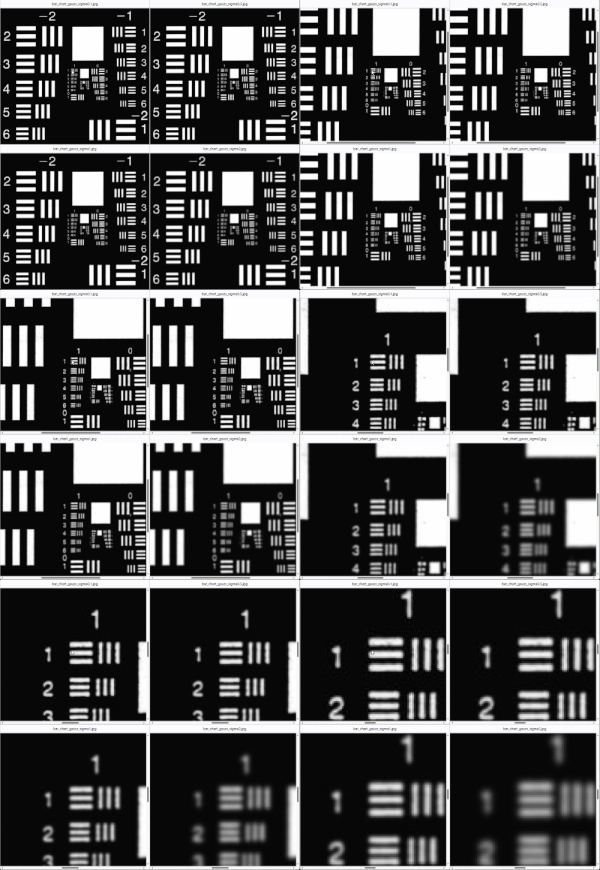
- To pan the view, just drag inside any image.
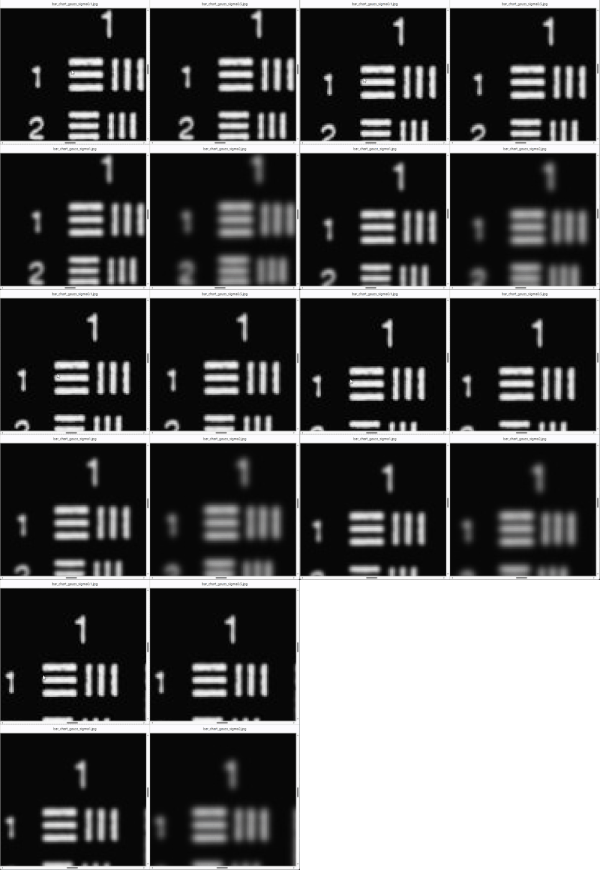
That’s it.
The operation is intuitive and simple.
ImageDebugger is designed specifically for comparing multiple images or image sets.
If you find ImageJ’s operation cumbersome, please give it a try.
Download ImageDebugger here.